Editing Datasets
A subset of dataset features are editable within Auspice.
Warning
Your edits will be erased if you refresh the webpage!
Dataset metadata
The following dataset metadata fields that are usually set with augur export
are editable within Auspice. See the JSON schema
for more details.
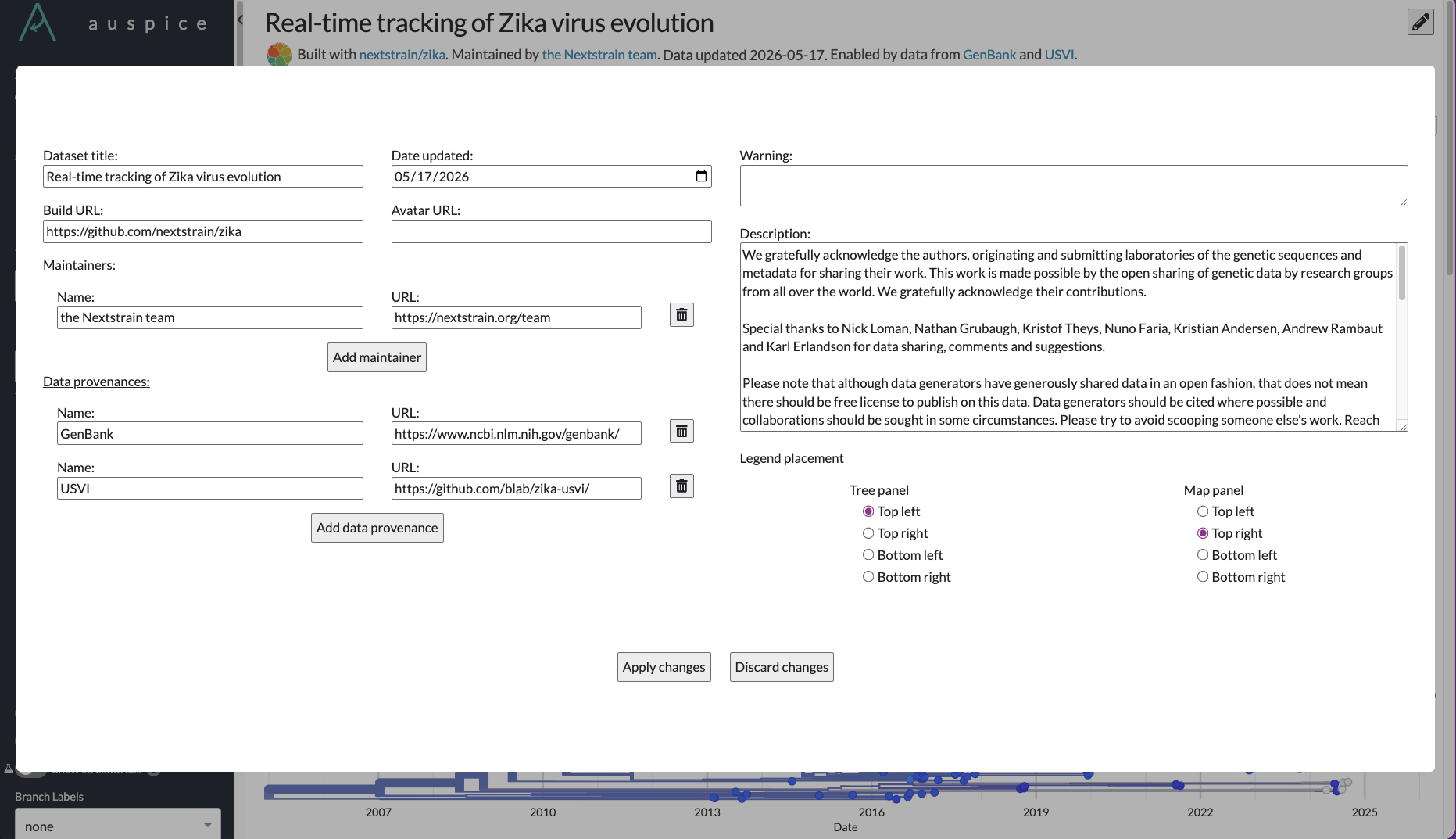
meta.titlemeta.updatedmeta.build_urlmeta.build_avatarmeta.descriptionmeta.warningmeta.maintainersmeta.data_provenance
Legend placement is customizable only within Auspice and does not have a corresponding field in the JSON schema. The legend placement will only be available for panels that include the legend display, i.e. tree, map, and measurements. The legend placement can be set to the four quadrants of the panel: top left, top right, bottom left, and bottom right.
How to edit the metadata
Click on the edit button to the right of the dataset title to open the editor modal.
Edit desired fields.
Click “Apply changes” or press “Enter” to save changes locally.
Click “Discard changes” or press “Esc” to discard all changes and close the modal.
Colors
Colors for the dataset are usually set with augur export as described in
“Configuring colors scales and legends”.
When colors are not configured, then Auspice will generate a suitable scale for the field.
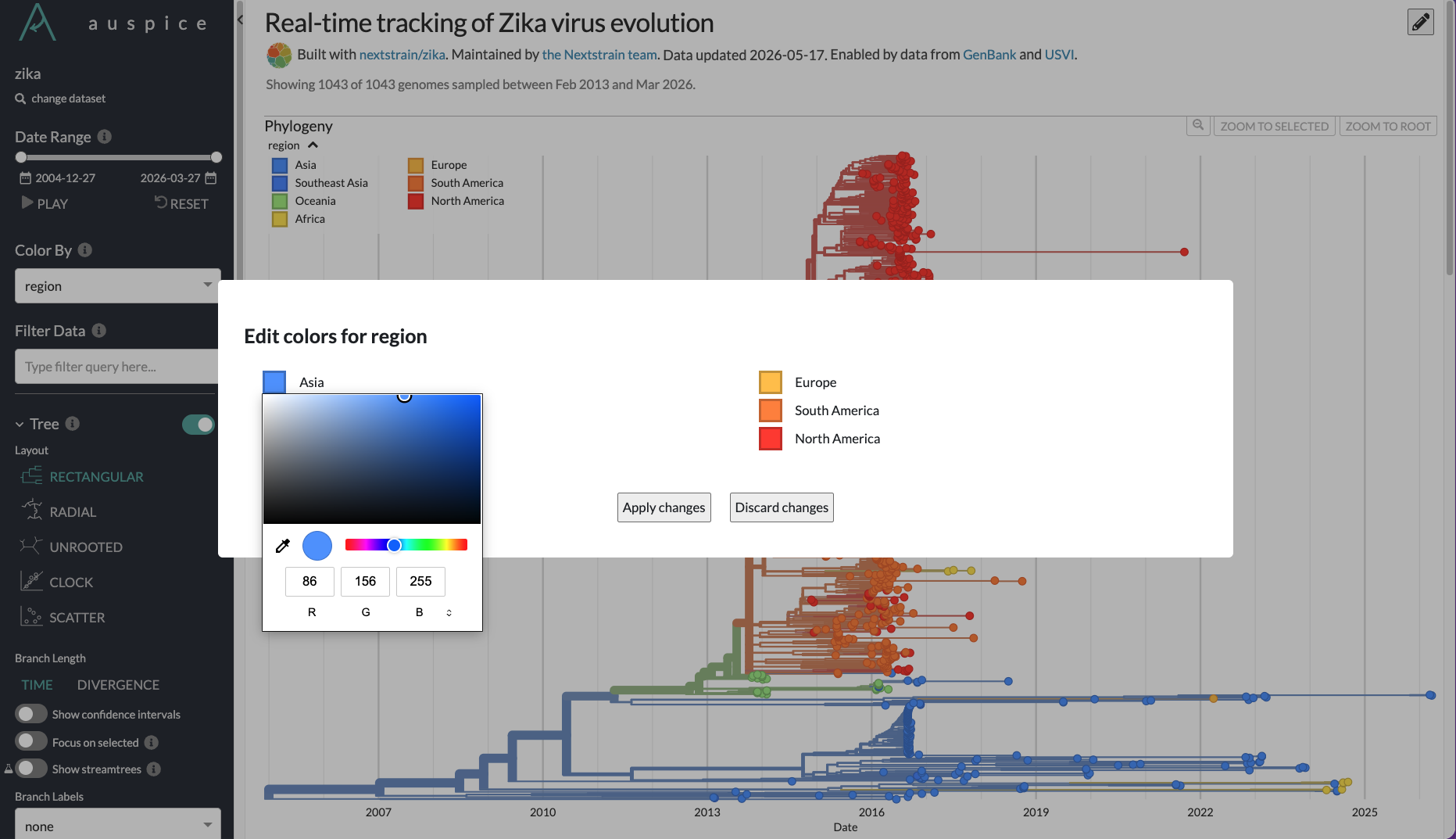
If you would like to change any existing colors, it is possible to do so locally within Auspice.
Note
It is currently not possible to change colors for the Genotype coloring.
Change the “Color By” to the field that you want to edit.
Open the legend.
Shift-click on one of the legend swatches to open the editor modal.
Click on the color value that you would like to change.
Click “Apply changes” or press “Enter” to save changes locally.
Click “Discard changes” or press “Esc” to discard all changes and close the modal.